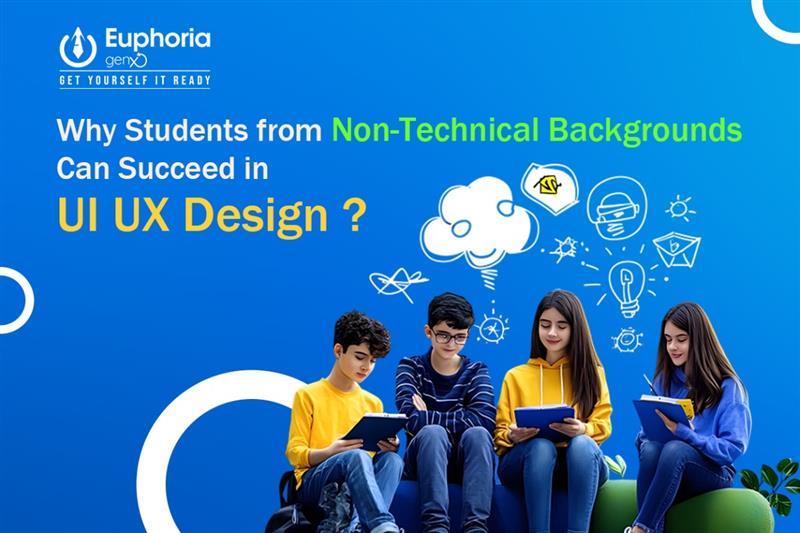
• Why Students from Non-Technical Backgrounds Can Succeed in UI/UX Design?

    UI/UX Design has become one of the most in-demand career choices in today’s digital-first world. Many students believe that to pursue UI/UX Design, they need to be from a technical background, like Computer Science or IT. But here’s the good news: anyone with creativity, problem-solving skills, and a passion for design can thrive in UI/UX—even without coding expertise.

    In this blog, we’ll explore why students from non-technical backgrounds can succeed in UI/UX Design, how to start a career in this field, and why joining a job-oriented UI/UX Design course at the best IT training institute can make you job-ready for the future.

    Understanding UI/UX Design and Its Significance

    Before diving deeper, let’s clear the basics.

    • UI (User Interface) focuses on the visual elements of an application or website—colors, typography, layouts, buttons, and overall look.
    • UX (User Experience) ensures users can navigate and interact with the product easily, making the design practical, smooth, and enjoyable.

    From mobile apps like Instagram to websites like Amazon, good UI/UX design is what keeps users engaged. Businesses today understand that design isn’t just about beauty—it’s about user satisfaction, and that’s why UI/UX Design professionals are in high demand worldwide.

    Do You Need a Technical Background for UI/UX Design?

    The simple answer: No.

    Unlike coding-intensive careers like software engineering, UI/UX Design focuses more on creativity, empathy, communication, and problem-solving. Sure, a little technical knowledge helps, but you don’t need to be a programmer to become a successful designer. In fact, what matters most is understanding user needs and translating them into seamless, engaging digital experiences. A strong sense of design, storytelling, and user psychology often makes a bigger impact than technical skills alone. Designers work closely with developers, product managers, and clients to bring ideas to life, making collaboration a key part of the process. Ultimately, UI/UX design bridges the gap between technology and people, ensuring that products are not just functional but also intuitive and enjoyable to use.

    Why Students from Non-Technical Backgrounds Can Excel in UI/UX Design

    1. Creativity Over Coding

    Non-technical students often bring fresh perspectives and creative problem-solving to design. Whether you’re from the arts, commerce, or humanities, your creative skills can become your biggest strength.

    2. Empathy and Human-Centered Thinking

    Great design starts with empathy. If you can understand user behavior and needs, you already have one of the most important skills for a UI/UX designer. Non-technical backgrounds often encourage soft skills such as communication, psychology, and storytelling, which are essential in UX.

    3. Tools Do the Heavy Lifting

    Modern design tools like Figma, Adobe XD, and Sketch don’t require coding. They’re built to empower designers, regardless of their technical expertise. With proper job-oriented training, any student can master these tools quickly.

    4. Design is About Thinking, Not Just Technology

    UI/UX is more about design thinking, wireframing, and prototyping rather than writing code. Your analytical and creative mindset matters more than your knowledge of programming languages.

    5. Growing Industry Needs More Talent

    The demand for UI/UX designers is booming across industries—IT companies, startups, fintech, e-commerce, and education technology are all hiring. This means more opportunities for students from diverse academic backgrounds to enter the industry.

    What Skills Do You Need to Become a UI/UX Designer?

    Here’s what you’ll learn in a UI/UX Design course:

    Design Thinking

    This is the foundation of UI/UX design. It’s all about approaching problems creatively, keeping the user’s needs at the center, and coming up with innovative solutions. Designers learn to empathize with users, define problems clearly, brainstorm ideas, and test them until they arrive at the best possible outcome.

    Wireframing & Prototyping

    Before jumping into final designs, UI/UX designers create wireframes—basic layouts that act as the “blueprint” of a website or app. Prototyping then brings these ideas to life by making them interactive, so designers and stakeholders can test the flow and usability before actual development begins.

    Visual Design

    This focuses on making interfaces not only functional but also visually appealing. It involves understanding typography for readability, color psychology for emotional impact, layout balance, and consistent branding. A good visual design ensures the product is both attractive and easy to navigate.

    User Research

    Great design starts with knowing the audience. Through surveys, interviews, focus groups, and usability testing, designers collect insights into user behavior, pain points, and expectations. This research helps in creating products that are tailored to real user needs rather than assumptions.

    Tools Mastery

    UI/UX designers use specialized tools to turn their ideas into reality. Platforms like Figma, Adobe XD, and Sketch help in designing interfaces and building prototypes, while tools like Photoshop or Illustrator are used for graphics and branding. Hands-on practice with these tools makes the design process faster and more professional.

    Soft Skills

    Beyond technical abilities, strong communication, empathy, storytelling, and teamwork are crucial. Designers need to explain their ideas clearly, collaborate with developers and stakeholders, and advocate for the user’s perspective. These skills often give non-technical students an edge, as they naturally bring creativity and empathy into their work.

    Benefits of Taking a UI/UX Design Course

    Become Job-Ready in a Short Time

    Unlike careers that require years of engineering or computer science education, UI/UX design can be learned in a shorter span of time. With a focused, job-oriented training program, you can acquire the essential skills and build a professional portfolio within just 3–6 months. This makes it an ideal career option for students and professionals looking for quick entry into the IT industry.

    High Demand and Attractive Salaries

    The demand for skilled UI/UX designers is rapidly growing as every business—from startups to global enterprises—needs intuitive digital products. In India, entry-level UI/UX designers can start with salaries ranging from ₹4–6 LPA, and with experience, this can rise to ₹15–20 LPA or even higher. Globally, UI/UX professionals are among the top-paid roles in IT, making it a lucrative career choice.

    Global Career Opportunities

    UI/UX design skills are universal and not bound by geography. A strong portfolio and hands-on experience can open doors to career opportunities not just in India, but also in countries like the USA, UK, Dubai, Canada, and beyond. Remote work opportunities further expand the scope, allowing you to work with international clients and companies.

    No Technical Degree Required

    One of the biggest advantages of UI/UX design is accessibility. You don’t need to hold a B.Tech, MCA, or any IT-related degree to start your journey. A structured UI/UX course from a reputed IT training institute can equip you with the right skills, tools, and practical.

    Final Thoughts

    UI/UX Design is one of the most exciting and rewarding career paths today. The myth that only technical students can succeed is outdated. With creativity, empathy, and the right training, students from non-technical backgrounds can thrive in UI/UX Design.

    So, if you’re looking to switch careers or start fresh, don’t let your background hold you back. Enroll in a UI/UX Design course at the best IT training institute, gain job-oriented training, and become job-ready for a successful future in design.


    UI/UX Design With 100% Placement Assistance Course

    Adobe Photoshop

    Module 1: Introduction to Adobe Photoshop
    • Introduction to photo manipulation
    • Combining images using layers and blending modes
    • Creating realistic shadows and highlights
    • Adding and blending objects into a scene

    Module 2: Basic Tools and Techniques
    • Selection tools: Marquee, Lasso, Magic Wand
    • Using the Crop and Slice tools
    • Understanding layers and layer properties
    • Applying basic transformations: Scale, Rotate, Flip

    Module 3: Working with Layers and Masks
    • Aligning layers in Photoshop
    • Keeping your Layer Panel organized
    • Linking layers
    • Adding layer styles and adjustments
    • Using layer masks to erase parts of an image
    • Project: Photo Compositing Basics (Resizing and Placing Layers)
    • Project Solution: Photo Compositing Basics (Resizing and Placing Layers)

    Module 4: Retouching and Repairing Images
    • Removing blemishes and imperfections with the Spot Healing Brush and Clone Stamp tool
    • Content-Aware Fill and Content-Aware Scale
    • Red-eye removal and teeth whitening
    • Using the Healing Brush and Patch Tool

    Module 5: Creating and Editing Text
    • Adding text layers
    • Formatting text: font, size, color, alignment
    • Applying text effects and styles
    • Warping text and creating text on a path

    Module 6: Advanced Selection and Masking Techniques
    • Refining selections with Quick Mask mode
    • Using the Pen Tool for precise selections and paths
    • Advanced masking techniques: Channels, Refine Edge
    • Selections based on color range and focus range

    Module 7: Photo Manipulation and Compositing
    • Introduction to photo manipulation
    • Combining images using layers and blending modes
    • Creating realistic shadows and highlights
    • Adding and blending objects into a scene

    Module 8: Special Effects and Filters
    • Using filters for creative effects
    • Applying blur and sharpening filters
    • Adding texture overlays and patterns
    • Creating custom brushes and brush presets

    Module 9: Output and Export
    • Understanding different file formats and their uses
    • Saving for web and devices
    • Batch processing and automation
    • Printing options and considerations

    Module 10: Advanced Techniques and Projects
    • Advanced photo manipulation projects
    • Designing for print and web
    • Portfolio review and feedback
    • Tips and resources for continued learning

    Introduction to Adobe Illustrator

    Module 1: Introduction to Adobe Illustrator
    • Overview of Illustrator interface
    • Understanding artboards and workspaces
    • Introduction to vector graphics and their advantages
    • Exploring basic tools and panels
    • Creating and saving new documents

    Module 2: Basic Shapes and Drawing Tools
    • Drawing shapes: rectangles, ellipses, polygons
    • Using the Pen Tool for drawing paths
    • Manipulating anchor points and handles
    • Adding and editing anchor points
    • Working with the Shape Builder Tool and Pathfinder panel

    Module 3: Working with Objects and Layers
    • Understanding layers and layer properties
    • Arranging and grouping objects
    • Locking, hiding, and selecting objects
    • Using the Layers panel for organization
    • Applying transparency and blending modes

    Module 4: Text and Typography
    • Adding and formatting text
    • Importing text from external sources
    • Creating text outlines and converting text to shapes
    • Applying text effects and styles
    • Working with type on a path

    Module 5: Color and Gradients
    • Using the Color panel and Swatches panel
    • Creating and editing color swatches
    • Applying gradients to objects and text
    • Using the Gradient panel and Gradient Tool
    • Working with global colors and recoloring artwork

    Module 6: Drawing and Painting Techniques
    • Drawing with the Pencil Tool and Blob Brush Tool
    • Using the Brush Tool and Calligraphy Brush Tool
    • Applying and editing brush strokes
    • Working with brushes and brush libraries
    • Creating custom brushes and brush presets

    Module 7: Working with Symbols and Patterns
    • Creating and using symbols
    • Editing and managing symbol libraries
    • Applying symbol instances to artwork
    • Creating and editing patterns
    • Using the Pattern Options panel and Pattern Tool

    Module 8: Drawing and Editing Shapes
    • Drawing complex shapes with the Shape Builder Tool
    • Creating and editing custom shapes with the Pathfinder panel
    • Using the Curvature Tool for drawing smooth curves
    • Working with the Width Tool for variable-width strokes
    • Applying shape effects and distortions

    Module 9: Advanced Illustration Techniques
    • Using the Perspective Grid for 3D effects
    • Working with the Mesh Tool for realistic shading
    • Creating custom patterns and textures
    • Applying effects and filters to artwork
    • Incorporating Illustrator artwork into other Adobe Creative Cloud applications

    Module 10: Output and Export
    • Understanding different file formats and their uses
    • Saving for print and web
    • Exporting assets for use in other applications
    • Preparing files for handoff to clients or collaborators
    • Printing considerations and settings

    Module 11: Portfolio Development and Presentation
    • Selecting and organizing portfolio pieces
    • Creating a digital portfolio using Illustrator
    • Presenting and showcasing design projects

    HTML, CSS, JAVASCRIPT, JQUERY

    Module 1: Basic HTML
    • Basic HTML Tags
    • Images
    • Hyperlink
    • Listing
    • Table

    Module 2: HTML5 Semantic Elements and Tags
    • Header
    • Navigation
    • Geolocation
    • Section
    • Video/Audio
    • Articles
    • InputTypes
    • Footer
    • Form Elements
    • Aside
    • Form Attributes

    Module 3: CSS3
    • Basic use of CSS
    • Formatting the page with CSS
    • Understanding DIV
    • Creating menu with CSS
    • Animation with CSS
    • Borders, Backgrounds
    • Text Effects, Fonts
    • Transitions, Animations
    • Multiple Columns

    Module 4: JavaScript
    • Introduction
    • Syntax
    • Conditional Statements
    • Comments
    • Loops
    • Events
    • Variables
    • Datatypes
    • User Define Function
    • Operator

    Module 5: Jquery
    • jQuery Introduction
    • Basic Tags
    • Syntax
    • JQuery Get
    • Selectors
    • Lasso Tool
    • Hide/Show
    • Event
    • JQuerySet
    • JQuery Add
    • jQuery Fade
    • jQuery Remove
    • jQuery Slide
    • jQuery CSS Classes
    • jQuery css()
    • jQuery UI

    Module 6: BOOTSTRAP
    • Download latest version of Bootstrap
    • Installand configure
    • Understanding Bootstrap Grid System
    • Creating rows
    • Fixed Layout vs. Fluid Layout
    • Bootstrap Code Lookup
    • Creating columns
    • Tables in Bootstrap
    • Creating cells with the grid system
    • Forms in Bootstrap
    • Bootstrap Buttons
    • Image Handling in Bootstrap

    Module 7:MOCK TEST

Talk to Our Counselor

Recent Post

  • January 21, 2026

    What Does a PHP Full Stack Developer Do? Skills, Tools & Career Path

  • January 13, 2026

    How to Use AI to Write Social Media Content That Actually Sells in 2026

  • January 6, 2026

    What Does 100% Placement Assistance Actually Mean? Our 2026 Success Process Revealed. 

  • December 17, 2025

    The Impact of AI on Jobs: What Skills You Must Have by 2026

  • December 10, 2025

    Why Data Analytics and AI Will Dominate Every Industry in 2026

TESTIMONIALS

What our students say

© 2026 Euphoria GenX. All Rights Reserved