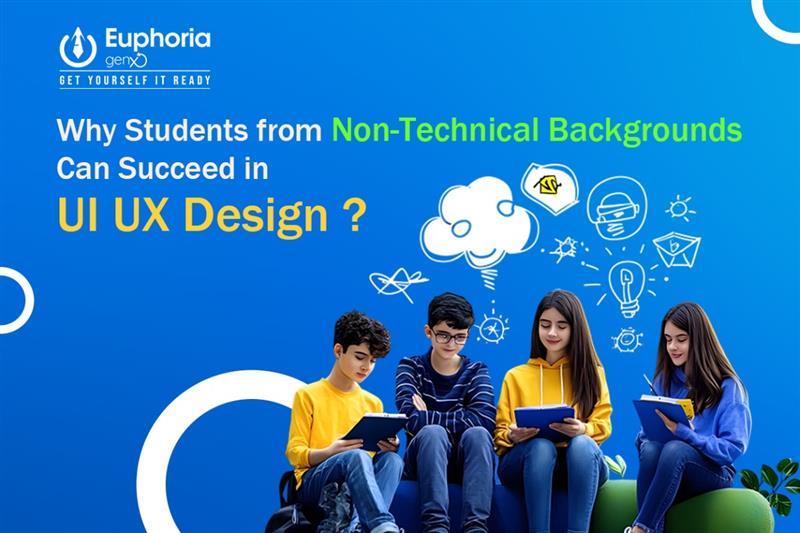
• Why Students from Non-Technical Backgrounds Can Succeed in UI/UX Design?

    UI/UX Design has become one of the most in-demand career choices in today’s digital-first world. Many students believe that to pursue UI/UX Design, they need to be from a technical background, like Computer Science or IT. But here’s the good news: anyone with creativity, problem-solving skills, and a passion for design can thrive in UI/UX—even without coding expertise.

    In this blog, we’ll explore why students from non-technical backgrounds can succeed in UI/UX Design, how to start a career in this field, and why joining a job-oriented UI/UX Design course at the best IT training institute can make you job-ready for the future.

    Understanding UI/UX Design and Its Significance

    Before diving deeper, let’s clear the basics.

    • UI (User Interface) focuses on the visual elements of an application or website—colors, typography, layouts, buttons, and overall look.
    • UX (User Experience) ensures users can navigate and interact with the product easily, making the design practical, smooth, and enjoyable.

    From mobile apps like Instagram to websites like Amazon, good UI/UX design is what keeps users engaged. Businesses today understand that design isn’t just about beauty—it’s about user satisfaction, and that’s why UI/UX Design professionals are in high demand worldwide.

    Do You Need a Technical Background for UI/UX Design?

    The simple answer: No.

    Unlike coding-intensive careers like software engineering, UI/UX Design focuses more on creativity, empathy, communication, and problem-solving. Sure, a little technical knowledge helps, but you don’t need to be a programmer to become a successful designer. In fact, what matters most is understanding user needs and translating them into seamless, engaging digital experiences. A strong sense of design, storytelling, and user psychology often makes a bigger impact than technical skills alone. Designers work closely with developers, product managers, and clients to bring ideas to life, making collaboration a key part of the process. Ultimately, UI/UX design bridges the gap between technology and people, ensuring that products are not just functional but also intuitive and enjoyable to use.

    Why Students from Non-Technical Backgrounds Can Excel in UI/UX Design

    1. Creativity Over Coding

    Non-technical students often bring fresh perspectives and creative problem-solving to design. Whether you’re from the arts, commerce, or humanities, your creative skills can become your biggest strength.

    2. Empathy and Human-Centered Thinking

    Great design starts with empathy. If you can understand user behavior and needs, you already have one of the most important skills for a UI/UX designer. Non-technical backgrounds often encourage soft skills such as communication, psychology, and storytelling, which are essential in UX.

    3. Tools Do the Heavy Lifting

    Modern design tools like Figma, Adobe XD, and Sketch don’t require coding. They’re built to empower designers, regardless of their technical expertise. With proper job-oriented training, any student can master these tools quickly.

    4. Design is About Thinking, Not Just Technology

    UI/UX is more about design thinking, wireframing, and prototyping rather than writing code. Your analytical and creative mindset matters more than your knowledge of programming languages.

    5. Growing Industry Needs More Talent

    The demand for UI/UX designers is booming across industries—IT companies, startups, fintech, e-commerce, and education technology are all hiring. This means more opportunities for students from diverse academic backgrounds to enter the industry.

    What Skills Do You Need to Become a UI/UX Designer?

    Here’s what you’ll learn in a UI/UX Design course:

    Design Thinking

    This is the foundation of UI/UX design. It’s all about approaching problems creatively, keeping the user’s needs at the center, and coming up with innovative solutions. Designers learn to empathize with users, define problems clearly, brainstorm ideas, and test them until they arrive at the best possible outcome.

    Wireframing & Prototyping

    Before jumping into final designs, UI/UX designers create wireframes—basic layouts that act as the “blueprint” of a website or app. Prototyping then brings these ideas to life by making them interactive, so designers and stakeholders can test the flow and usability before actual development begins.

    Visual Design

    This focuses on making interfaces not only functional but also visually appealing. It involves understanding typography for readability, color psychology for emotional impact, layout balance, and consistent branding. A good visual design ensures the product is both attractive and easy to navigate.

    User Research

    Great design starts with knowing the audience. Through surveys, interviews, focus groups, and usability testing, designers collect insights into user behavior, pain points, and expectations. This research helps in creating products that are tailored to real user needs rather than assumptions.

    Tools Mastery

    UI/UX designers use specialized tools to turn their ideas into reality. Platforms like Figma, Adobe XD, and Sketch help in designing interfaces and building prototypes, while tools like Photoshop or Illustrator are used for graphics and branding. Hands-on practice with these tools makes the design process faster and more professional.

    Soft Skills

    Beyond technical abilities, strong communication, empathy, storytelling, and teamwork are crucial. Designers need to explain their ideas clearly, collaborate with developers and stakeholders, and advocate for the user’s perspective. These skills often give non-technical students an edge, as they naturally bring creativity and empathy into their work.

    Benefits of Taking a UI/UX Design Course

    Become Job-Ready in a Short Time

    Unlike careers that require years of engineering or computer science education, UI/UX design can be learned in a shorter span of time. With a focused, job-oriented training program, you can acquire the essential skills and build a professional portfolio within just 3–6 months. This makes it an ideal career option for students and professionals looking for quick entry into the IT industry.

    High Demand and Attractive Salaries

    The demand for skilled UI/UX designers is rapidly growing as every business—from startups to global enterprises—needs intuitive digital products. In India, entry-level UI/UX designers can start with salaries ranging from ₹4–6 LPA, and with experience, this can rise to ₹15–20 LPA or even higher. Globally, UI/UX professionals are among the top-paid roles in IT, making it a lucrative career choice.

    Global Career Opportunities

    UI/UX design skills are universal and not bound by geography. A strong portfolio and hands-on experience can open doors to career opportunities not just in India, but also in countries like the USA, UK, Dubai, Canada, and beyond. Remote work opportunities further expand the scope, allowing you to work with international clients and companies.

    No Technical Degree Required

    One of the biggest advantages of UI/UX design is accessibility. You don’t need to hold a B.Tech, MCA, or any IT-related degree to start your journey. A structured UI/UX course from a reputed IT training institute can equip you with the right skills, tools, and practical.

    Final Thoughts

    UI/UX Design is one of the most exciting and rewarding career paths today. The myth that only technical students can succeed is outdated. With creativity, empathy, and the right training, students from non-technical backgrounds can thrive in UI/UX Design.

    So, if you’re looking to switch careers or start fresh, don’t let your background hold you back. Enroll in a UI/UX Design course at the best IT training institute, gain job-oriented training, and become job-ready for a successful future in design.


    UI/UX Design Course

    Brand Identity & Logo Design

    Module 1: Design Fundamentals & Branding Basics
    • Introduction to design principles: balance, contrast, alignment, repetition, proximity.
    • Understanding visual hierarchy and the role of white space.
    • What is branding? How it creates identity and loyalty.
    • Case studies of iconic brands: Apple, Nike, Coca-Cola.
    • Introduction to project: Defining a brand personality for your fictional company.

    Module 2: Adobe Illustrator Interface & Tools
    • Setting up artboards, understanding file types (.AI, .EPS, .SVG).
    • Mastering Pen Tool, Shape Tool, Pathfinder, Layers, and Stroke settings.
    • Creating basic geometric designs and layouts.
    • Hands-on: Create your first digital icon using shapes and paths.

    Module 3: Typography & Logo Sketching
    • Introduction to typography: Serif, Sans-Serif, Script, Display.
    • Font psychology and choosing fonts for brand tone.
    • Sketching concepts: Wordmarks, Symbols, Mascots, Emblems.
    • Introduction to moodboards and reference collection.

    Module 4: Logo Execution in Illustrator
    • Converting sketches into vector artwork.
    • Grid-based logo construction and refinement.
    • Using Shape Builder and Pathfinder for precision.
    • Exporting final logos for different platforms.

    Module 5: Color Theory and Brand Style
    • Psychology of color in branding.
    • Creating color palettes using Adobe Color and Coolors.
    • Applying consistent color and font rules to the logo.
    • Introduction to visual identity: what goes in a brand style guide.

    Module 6: Advanced Techniques & Refinement
    • Creating custom typography and unique lettering styles.
    • Adding motion and depth using gradients and shadows.
    • Designing logo variations (monochrome, horizontal, vertical).
    • Applying your logo to basic mockups (stationery, apparel).

    Module 7: Final Project – Brand Identity Kit
    • Logo and variations.
    • Color palette & typography rules.
    • Simple brand guide (PDF).
    • Mockups of usage (T-shirt, business card, etc.).

    Social Media & Marketing Design

    Module 1: Adobe Photoshop Interface & Workflow
    • Introduction to Photoshop workspace and tools.
    • Understanding file resolution (300dpi vs 72dpi).
    • Layers, selections, masking, and adjustment layers.
    • Retouching techniques using Clone Stamp, Healing Brush, and Patch Tool.

    Module 2: Social Media Banner Design
    • Setting up files for Instagram, Facebook, and YouTube.
    • Creating visually engaging social media posts with CTAs.
    • Typography in digital layouts.
    • Project: Create an Instagram carousel for your brand.

    Module 3: Poster & Event Design
    • Principles of layout design for posters and events.
    • Using contrast and text/image balance.
    • Creating teaser/event posters for your fictional brand.
    • Preparing files for print and web use.

    Module 4: Brochure & Flyer Design
    • Understanding folds and layout for brochures (bi-fold, tri-fold).
    • Flyers for promotions and quick ads.
    • Working with grids and bleeds.
    • Project: Design a brand brochure + promotional flyer.

    Module 5: Campaign & Ad Set Design
    • Creating thematic consistency across ads (story format, carousels, square posts).
    • Designing for mobile-first content.
    • Introduction to A/B design testing (design variation testing).

    Module 6: Product Mockups & Client Presentation
    • Applying artwork to packaging, apparel, and digital mockups.
    • Creating case study-ready slides.
    • Export formats and sizes for Behance uploads and portfolios.

    Module 7: Branding Kit Final Project (Photoshop)
    • Build a complete social media campaign for your brand.
    • Instagram Carousal
    • Event Poster
    • Tri-fold brochure
    • Mockups on t-shirts, packaging, billboards
    • Export all in a presentable slide format.

    Module 6: Drawing and Painting Techniques
    • Drawing with the Pencil Tool and Blob Brush Tool
    • Social media post set
    • Promotional flyer
    • Brochure
    • Product mockup
    • Presentation-ready portfolio
    • Final branding kit showcasing your complete campaign design

    UI/UX Design with Figma

    Module 1: UI/UX Design Overview
    • UX Design Principles: Empathy, usability, accessibility.
    • UI vs UX: Understanding the difference.
    • Design process: Research → Ideation → Wireframes → UI → Testing.
    • Analyze 2 popular apps from a UX perspective.

    Module 2: Figma Basics & UI Kit Creation
    • Creating user personas and empathy maps.
    • Mapping user journeys and flows.
    • Sketching low-fidelity wireframes and converting them to Figma.
    • Internal feedback and iteration sessions.

    Module 4: Designing Final UI Screens
    • Using UI kit to design actual pages (Homepage, Login, Product).
    • Visual hierarchy, color contrast, and spacing in UI.
    • Responsive design for mobile and tablet.

    Module 5: Prototyping in Figma
    • Creating interactive links and transitions.
    • Building a working prototype for user testing.
    • Sharing prototypes for client or peer review.

    Module 6: Final UX Case Study Project
    • Designing a 4–5 screen app or website for your brand.
    • Include features like: onboarding, product list, product details, checkout, and contact.
    • Include: Wireframes, Final Screens, and Prototype.

    Module 7: Portfolio + Presentation Day
    • Writing case studies for Behance or your personal portfolio.
    • How to present your work in interviews or on freelancing platforms.

    HTML, CSS, JavaScript, jQuery

    Module 1: Basic HTML
    • Basic HTML Tags
    • Images
    • Hyperlinks
    • Lists
    • Tables

    Module 2: HTML5 Semantic Elements and Tags
    • Header
    • Navigation
    • Geolocation
    • Section
    • Video/Audio
    • Articles
    • Input Types
    • Footer
    • Form Elements
    • Form Elements
    • Aside
    • Form Attributes

    Module 3: CSS3
    • Basic use of CSS
    • Formatting the page with CSS
    • Understanding DIV
    • Creating menu with CSS
    • Animation with CSS
    • Borders, Backgrounds
    • Text Effects, Fonts
    • Transitions, Animations
    • Multiple Columns

    Module 4: JavaScript
    • Introduction
    • Syntax
    • Conditional Statements
    • Comments
    • Loops
    • Events
    • Variables
    • Datatypes
    • User Define Function
    • Operator

    Module 5: jQuery
    • jQuery Introduction
    • Basic Tags
    • Syntax
    • jQuery Get
    • Selectors
    • Lasso Tool
    • Hide/Show
    • Event
    • jQuery Set
    • jQuery Add
    • jQuery Fade
    • jQuery Remove
    • jQuery Slide
    • jQuery CSS Classes
    • jQuery CSS()
    • jQuery UI

    Module 6: Bootstrap
    • Download latest version of Bootstrap
    • Install and configure Bootstrap
    • Understanding Bootstrap Grid System
    • Creating rows
    • Fixed Layout vs. Fluid Layout
    • Bootstrap Code Lookup
    • Creating columns
    • Tables in Bootstrap
    • Creating cells with the grid system
    • Forms in Bootstrap
    • Bootstrap Buttons
    • Image Handling in Bootstrap

    Module 7: Mock Test
    • Mock Test and Assessment
    • Practical Evaluation
    • Doubt-Clearing Session
    • Final Revision

Talk to Our Counselor

Recent Post

  • May 15, 2026

    AI Tools Every Digital Marketing Student Should Learn in 2026 

  • April 20, 2026

    Node JS Course Roadmap 2026: Become a Node.js Developer

  • April 3, 2026

    Top Companies Hiring React JS Developers in India

  • March 13, 2026

    Will You Get a Job After a UI/UX Design Course? Here’s the Reality

  • February 27, 2026

    Why Full Stack Developers Are in High Demand in 2026? 

TESTIMONIALS

What our students say

© 2026 Euphoria GenX. All Rights Reserved. UDYAM-WB-10-0197721 MSME